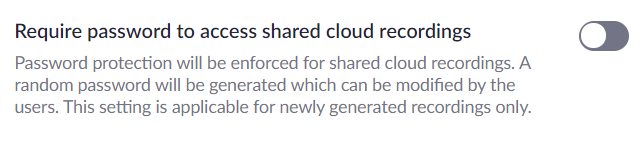
To create a Gist for a Zoom cloud recording, Gistify must be able to access the recordings. To do that, Zoom settings must be configured to the recording to be downloaded and accessed without a password.
Settings for a Single Recording
Sometimes it's most appropriate to modify settings for just the recordings you want to Gist.
- In your favorite browser, sign in at zoom.us, choose "My Account", and on the left, under the "Personal" heading, choose Recordings.
- From the list of Cloud Recordings, choose the recording you'd like to Gist by clicking on the topic
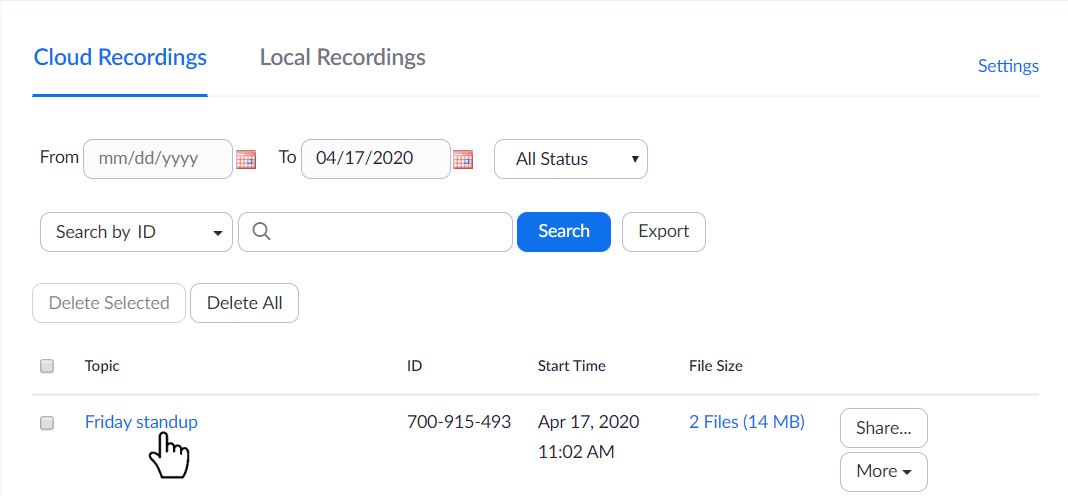
- Click on the Share button
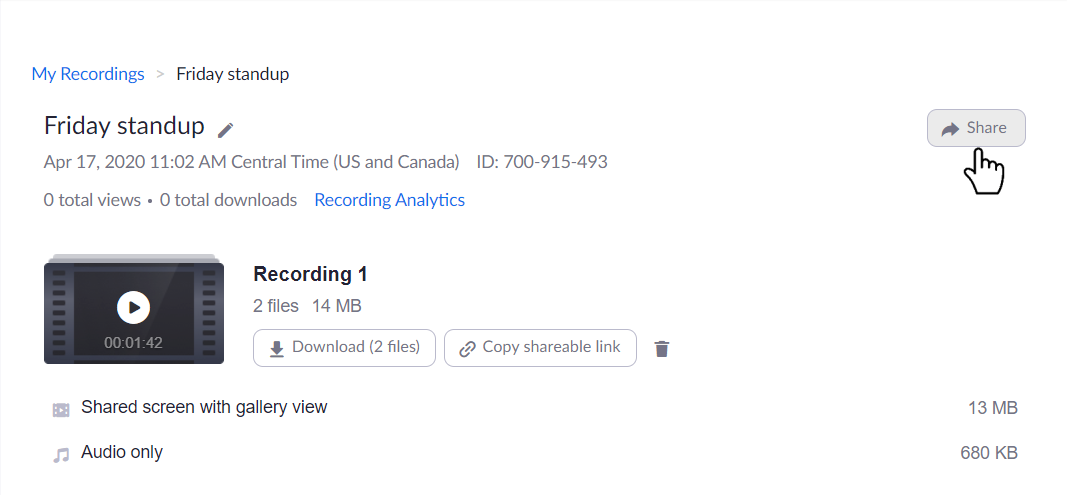
- Make sure that:
- "Share this recording" is turned on
- the "Publicly" option is chosen
- "Viewers can download" is enabled
- and "Password protect" is disabled
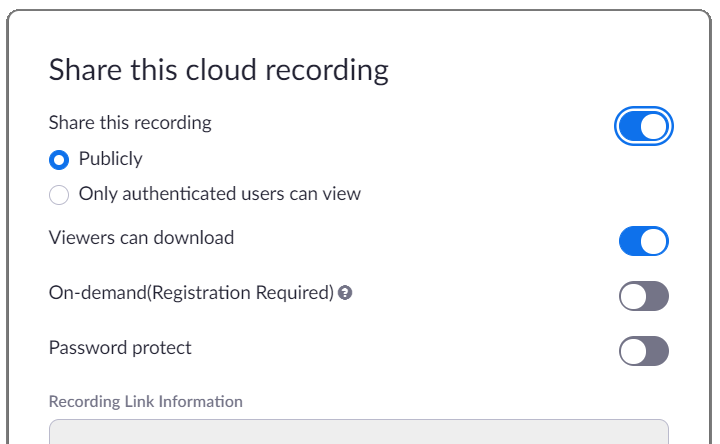
With settings configured as above, anyone with the link for your recording will be able to play and download it.
Default Settings for All Recordings
Sometimes it's more convenient to change your Zoom settings to default in a way that all of your recordings are automatically shared out without a password so you can easy create a Gist without modification of settings for individual recordings.
- In your favorite browser, sign in at zoom.us, choose "My Account", and on the left, under the "Personal" heading, choose Settings and the Recording tab
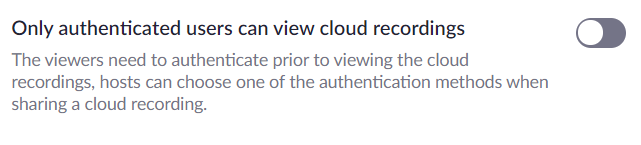
- Disable the option that "Only authenticated users can view cloud recordings"
- Disable the option to "Require password to access shared cloud recordings"